If you run a home service business, you already know what a steady stream of 5-star Google reviews can do for you. More reviews means better rankings, more trust from people who’ve never met you, and more jobs booked without spending another dollar on ads.
The tricky part isn’t earning good reviews. If you’re running Service Titan, chances are your team is already doing solid work on every job. The tricky part is remembering to ask for the review once the job is done, every single time, for every single customer.
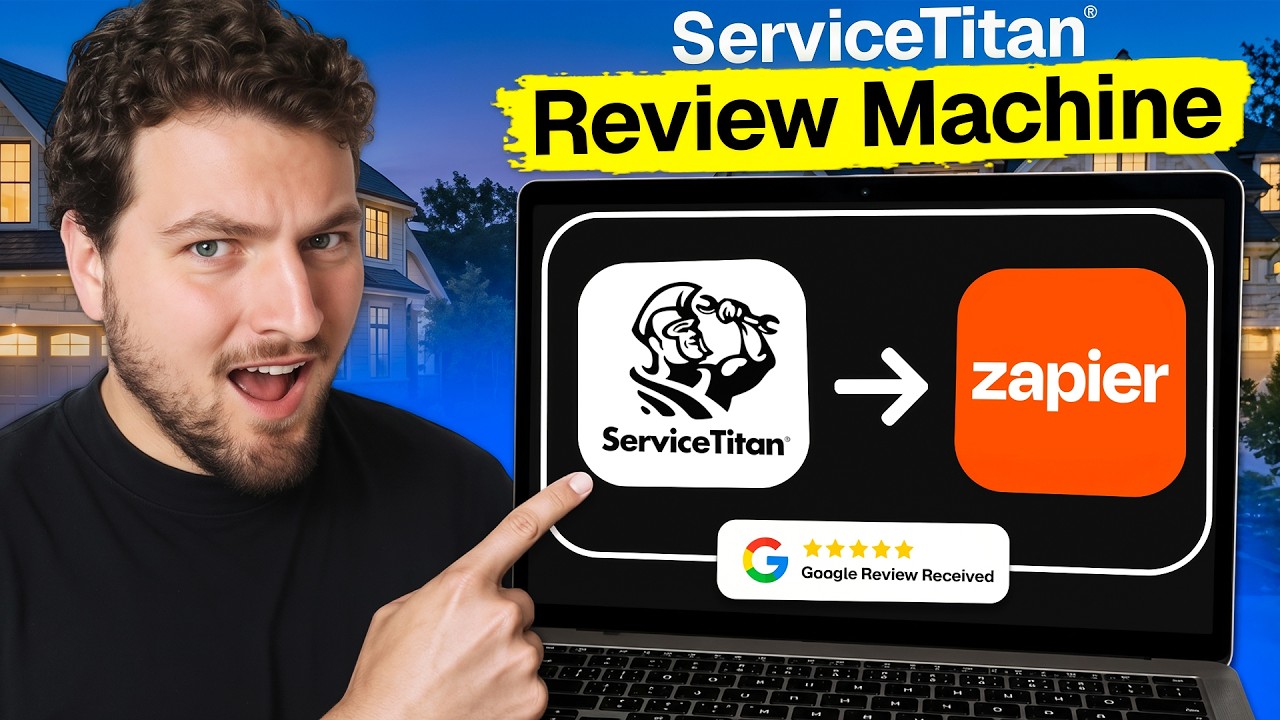
Watch the video below for a quick walkthrough, or keep reading for the full breakdown.
Why Google Reviews Are Worth Automating
Google reviews do more than make your business look good. They help you show up higher when someone searches “plumber near me” or “HVAC company in [your city],” and they build trust with a customer before they’ve ever spoken to you. When two companies look about the same on paper, the one with more recent, better reviews usually wins the call.
That makes reviews one of the few marketing assets that gets more valuable the more consistently you collect them, and it costs nothing but a text message.
The Real Reason You’re Not Getting More Reviews
Most companies aren’t missing reviews because customers don’t want to leave them. They’re missing them because nobody on the team is consistently asking. Your techs are busy finishing the job and heading to the next one. Your office staff is juggling calls, scheduling, and everything else. Asking for a review is easy to forget, especially when it depends on a person remembering to do it after every single job.
That’s exactly the kind of repetitive task automation is good at. If you can trigger the ask automatically the moment a job is marked complete, it stops depending on anyone remembering.
The Workflow: Service Titan + Zapier + Twilio
Here’s the automation, step by step. It uses Service Titan as the trigger, Zapier to connect the pieces, and Twilio to send the actual text message. If you’ve never connected Service Titan to Zapier before, Service Titan has a help article that walks through linking the two accounts, do that first.
Step 1: Trigger on an Updated Job
In Zapier, set Service Titan as your trigger app and choose “Updated Job” as the trigger event. Connect the Service Titan account that’s linked to Zapier, then test the trigger to pull in a sample job.
Step 2: Filter for Completed Jobs Only
An “updated job” trigger fires for all kinds of changes, not just completions. Add a filter step that only lets the workflow continue when the job status is marked “Completed.” This makes sure the review request only goes out once the work is actually done, not every time something changes on the job.
Step 3: Look Up the Customer in Service Titan
Next, add a Service Titan “Search Customer” step. Set the customer ID field to pull from the previous step (the job that was just marked complete) instead of leaving it static. This step is what gets you the customer’s phone number and name so you can actually text them.
Step 4: Personalize the Message with a Quick AI Step
Service Titan will usually return the customer’s full name, not just a first name, so add a short AI step in Zapier that extracts just the first name and formats it normally (not in all caps). It’s a small touch, but “Hey Lance” reads a lot better than “Hey LANCE CUSTOMER LLC.”
If the customer has more than one phone number on file, you can use this same step to pull just the first one, so the text goes to a single number instead of failing on a list.
Step 5: Send the Text with Twilio
Add Twilio as your final step, using the “Send SMS” event. Send from your Twilio number to the customer’s phone number (pulled from Step 4), and write a short, simple message. Something like:
“Hey [First Name], this is [Your Business Name]. Thanks again for trusting us with your recent service. If we earned it, would you mind taking 30 seconds to leave us a review?”
Paste your Google review link into the message (see below for where to find it), then test the step. You’ll see exactly what the customer will receive, including a clickable link that takes them straight to your review page.
Where to Find Your Google Review Link
This part trips people up more than it should. Search your business name in Google while you’re logged into the Google account tied to your Google Business Profile. You’ll see a management panel with several tools, including a button labeled “Ask for reviews.” Click it and Google will give you a QR code and a short link. That short link is what goes in your text message.
What You’ll Need to Set This Up
- Service Titan connected to Zapier
- A Zapier account (the free plan may work depending on your usage; multi-step Zaps with filters typically require a paid plan)
- A Twilio account (or a similar SMS provider) with an approved number to text from
- Your Google review short link, pulled directly from your Google Business Profile
A Few Things to Watch Out For
A few honest caveats worth knowing before you turn this on:
- Duplicate triggers: job status can change more than once depending on how your team uses Service Titan. Filter tightly on “Completed” so you don’t end up texting the same customer twice.
- Don’t incentivize reviews: automating the ask is fine, but offering a discount or anything of value in exchange for a review violates Google’s policies. Keep the message a simple, no-strings-attached ask.
- Consider how you handle unhappy customers: this build sends the same message to everyone whose job is marked complete. If you want to route unhappy customers away from a public review request and toward a direct conversation instead, you’ll need to add a filter or a quick satisfaction check before the text goes out.
Do You Need Dedicated Review Software Instead?
There are paid tools built specifically for this, some of them Service Titan-specific, that handle review requests, technician attribution, and AI-generated responses across dozens of review sites. They’re worth considering if you want reporting on which technician is driving the best reviews, or if you’re managing review requests across more than one platform (Google, Yelp, Nextdoor) at scale.
But if you just want more Google reviews without adding another monthly bill, the Zapier and Twilio build above gets you most of the way there for the cost of the tools you may already be paying for. If you use a different field-service CRM, the same approach is covered for Housecall Pro and Jobber.
If you’re already using Service Titan alongside other tools in your stack, it’s worth checking out how LeadTruffle connects with Service Titan to sync leads and bookings, since review requests are just one piece of a bigger automation picture.
This same trigger-filter-personalize-send pattern shows up again and again once you start automating parts of your business. We used it here for review requests, and the same approach works for auto-replying to Google LSA leads, just with a different trigger and a different message.
Frequently Asked Questions
Is it against Google's rules to automate review requests?
No. Automating the request itself is fine and common practice. What violates Google's policy is offering an incentive (a discount, a gift card, entry into a drawing) in exchange for a review, or asking only customers you expect to leave positive reviews.
What's the best time to text a customer for a review after a job?
Shortly after the job wraps up, while the work is still fresh, tends to work best. Waiting too long (days later) gives customers time to forget the details or move on.
What happens if a customer had a bad experience? Will they still get a review request?
With the basic build described here, yes, everyone whose job is marked complete gets the same message. If you want to filter out customers who weren't satisfied, you'll need to add a quick satisfaction check (a simple one-question text) before the review request goes out.
Do I need Zapier if I already use Service Titan?
Service Titan doesn't include a built-in way to automatically text customers a Google review link based on job status, so yes, you'll need Zapier (or a similar automation tool) to connect the two together.
Does this work with other field service software besides Service Titan?
Yes, the same pattern (trigger on job completion, look up the customer, send a text) works with other platforms like Housecall Pro or Jobber. The specific trigger and search steps will look a little different, but the overall workflow is the same.
What does this cost to run each month?
Costs mainly come down to your Zapier plan (multi-step Zaps with filters usually require a paid tier) and your SMS provider, which is typically billed per message sent. For most home service businesses, this runs a small monthly cost, well under what a dedicated review management tool would charge.
Ready to automate more than just reviews?
Review requests are one small piece of running a home service business on autopilot. If missed calls, slow lead follow-up, or unanswered texts are costing you jobs too, LeadTruffle's missed-call text-back feature runs on the same idea: something happens, and the right message goes out automatically, without anyone on your team having to remember. See missed-call text-back